 Hue Plan 휴플랜
Apple Watch Planner App: See Today's Schedule on Your Wrist
An Apple Watch planner isn't really for planning on your wrist. It's for glancing at the day you already planned on your iPhone. This guide covers what complications are, how to add a schedule complication to your watch face, which faces work best, and what to check when your schedule doesn't appear.
The realistic way to use an Apple Watch planner: plan on iPhone, check on your wrist
An Apple Watch screen is roughly 40 to 49 mm. Typing an event title and picking start and end times on something that small is tedious, so people who stick with an Apple Watch planner app usually split the work. They plan the day once on their iPhone or iPad, either in the morning or the night before, and during the day they only raise their wrist to answer two questions: what should I be doing right now, and how long until the next thing?
The payoff is that you pull out your phone far less. Unlocking your phone tends to drag you into notifications and messages, while a glance at your wrist takes two seconds and doesn't lead anywhere else. It also works in places where taking out a phone is awkward, like a meeting, a lecture, or behind the wheel.
So when you choose an Apple Watch planner, the more important question isn't how much you can do on the watch. It's how quickly your schedule shows up on the watch face. A schedule you can only see after opening an app is a schedule you'll stop checking. When today's plan sits right on the face, raising your wrist and checking your plan become the same motion. That's exactly what complications are for.
What is an Apple Watch complication? Shapes and types
A complication is a small slot of information on your watch face. It shows the key piece of data from one app, such as the weather, your Activity rings, or battery level, and tapping it opens that app. The term comes from traditional watchmaking, where anything beyond telling the time, like a date window or a moon phase, was called a complication.
Complications come in four basic shapes. 1) Circular: a small round slot that fits a single number or a progress ring. 2) Rectangular: a wide slot with room for two or three lines of text, which makes it the best fit for an event title and time. 3) Inline: a single line of text that sits above or below the time. 4) Corner: the small slots tucked into the four corners of Infograph-style faces.
Which shapes you get depends on the face. Faces with a large rectangular slot in the middle, such as Modular, Modular Ultra, and Infograph Modular, are better for text-heavy information like a schedule. Faces with many corner and circular slots, such as Infograph, are better for showing several numbers or progress rings at once. Your iPhone Lock Screen widgets use the same circular, rectangular, and inline shapes, so if you've set up Lock Screen widgets before, you already know how to think about complications.
How to add a schedule complication to your watch face
First, the planner app needs to be installed on your watch. On your iPhone, open the Watch app, go to My Watch, scroll down to Available Apps, and tap Install. After it installs, open the app on your watch once to confirm your data is coming through. That makes the next steps smoother.
To add it directly on the watch: 1) Touch and hold the watch face. 2) Tap Edit. 3) Swipe left until you reach the complications screen. 4) Tap the slot you want to change. 5) Scroll to your planner app and choose the complication you want. 6) Press the Digital Crown to save, then press it again to return to the face.
You can also do it from your iPhone. In the Watch app, open My Faces, pick the face you use, and assign an app to each position under Complications. The bigger screen makes it easier to see which slot has which shape, and it's handy when you want to update several faces at once.
If your app doesn't appear in the list, the most common reason is that it doesn't support that slot's shape. Try a different slot on the same face, such as the large center slot instead of a corner, or switch to a face that has a rectangular slot.
Which watch face to use, and how to split roles with Lock Screen widgets
If checking your schedule is the main goal, start with a Modular-style face that has a large rectangular slot in the center. Put today's schedule in the big slot and things you check often, like Activity or weather, in the small ones. If you work an office job, that might mean your schedule in the center, the date as an inline line at the top, and a timer in a small slot. On a day packed with a college class schedule, the center slot alone is enough to see which class you're in and where you're headed next.
Faces with lots of slots, like Infograph, are good for numeric information such as how far through your day you are, because a single number gets that across. Long text like event titles, on the other hand, gets cut off in small slots. Keep one rule in mind: text goes in big slots, numbers go in small ones.
It also helps to give your wrist and your Lock Screen different jobs. Your wrist is for one- or two-second glances while you walk or talk. Your Lock Screen is for the moment you pick up your phone and have a little more attention to spare. So keep the watch focused on now and next, and let the Lock Screen show a bit more, like the full flow of today or the exact time of your next event. Both read from the same data, so your day looks consistent wherever you check it.
Hue Plan's Apple Watch app and complications
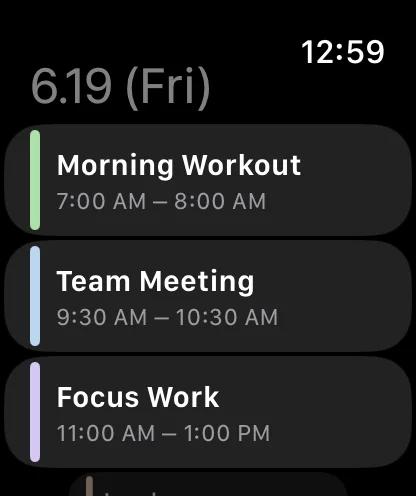
Hue Plan is a time-blocking planner where you paint your day in pastel color blocks, and it includes an Apple Watch app and complications. Open the watch app and you get today's events as a list in time order. The color bar next to each event matches the category color you set on your iPhone, and whatever is happening right now carries a Now label, so you know where you are in your day the moment you raise your wrist.
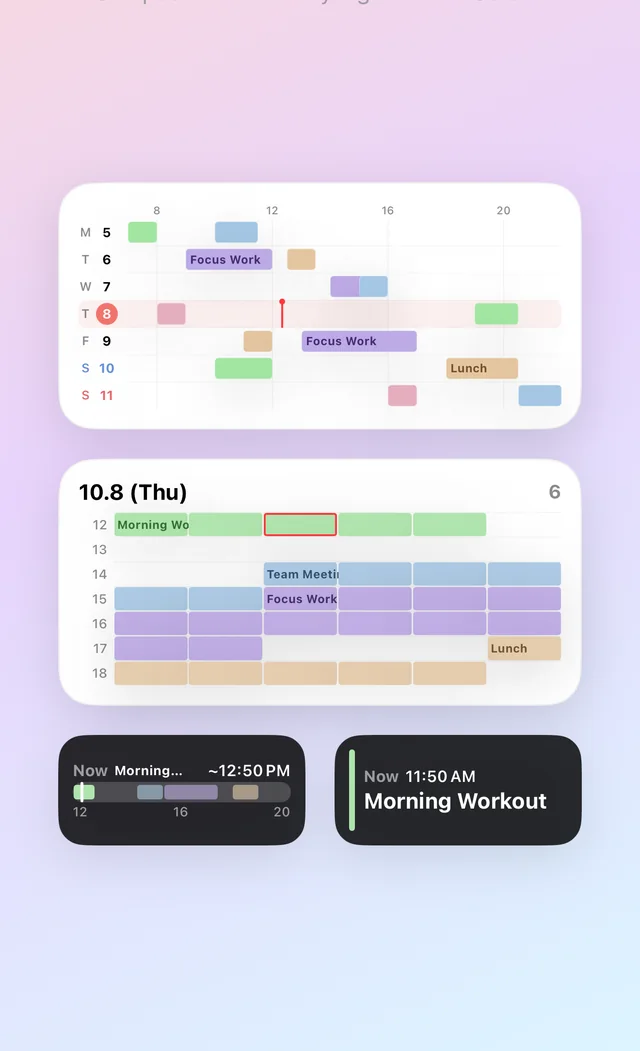
Starting with version 1.2.1, you can add two complications to your watch face. Today's Flow shows how your events run over the next few hours in a rectangular slot, and Today's Progress shows the share of today's events you've completed in a circular, corner, or inline slot. They follow the rule above by design: the text-heavy Today's Flow goes in a big slot, and the single-number Today's Progress goes in a small one.
You create and edit events on iPhone, iPad, or Mac. Long-press and drag to make a block, fill your usual day quickly with repeating events or saved templates, and then just check in from your wrist. Data syncs between devices through your own iCloud. Hue Plan has no login and no server.
The watch app and widgets are Premium features. Premium is a one-time purchase ($2.99), not a subscription, and it also unlocks week and month views, Review, iCloud sync, automatic backups, and Focus mode.
Checklist: when your schedule doesn't show up on Apple Watch
If your watch shows an empty schedule, or the complication isn't in the list, go through these checks in order. One of them usually solves it.
1) Make sure the watch app is installed. If Hue Plan still appears under Available Apps in the iPhone Watch app, it hasn't been installed yet. 2) Make sure iCloud Sync is turned on in Hue Plan's settings. The watch receives your events through iCloud, so if this is off, your watch stays empty even when your iPhone has events. 3) Make sure your iPhone and watch use the same Apple Account. Check the name at the top of iPhone Settings and its iCloud status. 4) Make sure Premium is active. On a device other than the one you bought on, tap Restore Purchases once. 5) Open Hue Plan on your watch once so it pulls the latest data.
A complication that updates a few minutes late isn't broken. To save battery, watchOS limits how often complications refresh, so an edit you just made on your iPhone may not reach your wrist right away. If you need it now, open the app on your watch. Right after a fresh install, removing the complication from the face and adding it back can also help.
FAQ
Can I add events directly on my Apple Watch? +
Does the Apple Watch app work in the free version? +
Which watch face is best for seeing my schedule? +
Why doesn't an edit on my iPhone show up on my watch right away? +
 Free to start · Premium one-time purchase