 Hue Plan 휴플랜
Focus Timer with a Planner: Pomodoro vs Deep Work Blocks
If you keep a Pomodoro app running and still lose focus, the problem is often that your timer and your plan live in separate places. This guide compares the main focus timer methods by type of work, shows how to run a timer on each block of a time-blocked day, covers the iPhone settings that cut interruptions, and explains how to log what actually happened once the timer ends.
Why a focus timer and time blocking work better together
Time blocking decides when you will do something. A focus timer keeps you on it once that time arrives. Use only one and you get a gap. With a plan alone, a block starts and twenty minutes disappear into your phone. With a timer alone, you finish four solid Pomodoros and realize at 6 p.m. that the important task never got touched.
Put them together and the workflow becomes simple. In the morning you lay out blocks like "9:00 to 10:30 report draft" and "2:00 to 3:00 Spanish vocab." When a block begins, you start a timer that matches it. You don't have to decide what to work on, because the plan already did, and when the timer ends you move to the next block. The same idea works whether you are a student tracking study hours or a knowledge worker protecting deep work from meetings.
Pomodoro vs 52/17 vs 90-minute deep work: which fits which task
Pomodoro (25 minutes of focus, 5 minutes of rest, and a 15 to 30 minute break after every fourth round) is best at getting you started. Twenty-five minutes feels small enough to begin a task you have been avoiding, and frequent breaks suit work that survives being chopped up: flashcards, problem sets, inbox cleanup, research. The downside shows up in writing or coding, where you build context in your head and a bell every 25 minutes knocks it down.
52/17 (52 minutes on, 17 off) became popular after a workplace study of how highly productive people actually split their time. It fits neatly into one-hour blocks, which makes it a good default for office work and college assignments. Seventeen minutes is a real break, so use it to step away from screens entirely: a walk, stretching, a coffee.
Ninety-minute deep work leans on the idea that alertness rises and falls in roughly 90-minute cycles. Save it for work that needs sustained immersion, such as a proposal, a thesis chapter, a system design, or a long article. Schedule one or two per day and follow each with a proper 20-minute break. Stacking 90-minute blocks all day usually leads to an afternoon crash, so a realistic mix is one or two deep work blocks in the morning and Pomodoro or 52/17 for lighter tasks after lunch.
There is no magic number. The same person needs different lengths for different tasks, so the most useful rule is to pick the timer length based on what the block contains.
The problem with a separate timer app, and block-based timers
When your planner and your Pomodoro app are separate, the plan and the timer drift apart. The planner says "10:00 to 11:30 proposal," but the timer just counts 25 minutes. You have to work out in your head which round you are on and how much of the block is left. Switching between apps to press start is a small interruption of its own, and the two records pile up separately, which makes your end-of-day review harder to reconcile.
A block-based timer removes that friction. 1) Pick the block you are about to start from today's plan. 2) Start a timer for that block's length: a 90-minute deep work block becomes a 90-minute timer, and a 50-minute assignment block becomes 50 minutes. 3) If you want Pomodoro rhythm inside a longer stretch, split the stretch into 25-minute blocks with 5-minute breaks in your planner. 4) When the timer ends, mark the block done and move on.
Now "what" and "how long" sit on the same screen. You switch apps less, and because the block name is the timer name, you are constantly reminded what you are supposed to be focused on.
See remaining time on the Dynamic Island and cut interruptions
Every time you unlock your phone to check the timer, notifications and other apps are waiting. A timer that supports iPhone Live Activities shows the countdown on the Lock Screen, and on models with a Dynamic Island it stays visible at the top of the screen, so you never need to open the app. Glancing at the Lock Screen breaks your flow far less than unlocking.
Pair the timer with a few iOS settings. First, go to Settings > Focus and create a Work or Study Focus that allows only the people and apps you truly need. You can schedule it to turn on automatically during your weekday morning deep work hours. Second, turn on Settings > Notifications > Scheduled Summary so non-urgent app notifications arrive in two or three batches a day. Third, set the Focus to show only one Home Screen page, so social apps are out of sight while it is on.
One caution: add your timer app to the Focus allow list. Otherwise you may miss the end-of-block alert and drift past the start of the next block.
After the timer ends: log actual time, and common mistakes
The bell is not the end of the block. Note right away whether the 90 minutes you planned turned into 70 because you started late, or 110 because you were in the zone. A week of these notes reveals patterns like "proposals always take 30 minutes longer than I think" or "blocks after 3 p.m. keep slipping," and you can size future blocks accordingly.
A few mistakes are worth avoiding. Timer obsession: beating yourself up when focus breaks before the bell, or forcing yourself to stop mid-flow because it rang. The timer is there to help you start, not to grade you. Blocks that are too short: ten 15-minute blocks a day mostly produce switching costs and very little finished work, so give deep tasks at least 45 minutes. Leaving breaks out of the plan: rest needs its own block, or the next block starts late. Timing the whole day: a focus timer earns its keep on the two or three blocks that matter most, not on every errand.
Run a timer on your blocks with Hue Plan Focus Mode
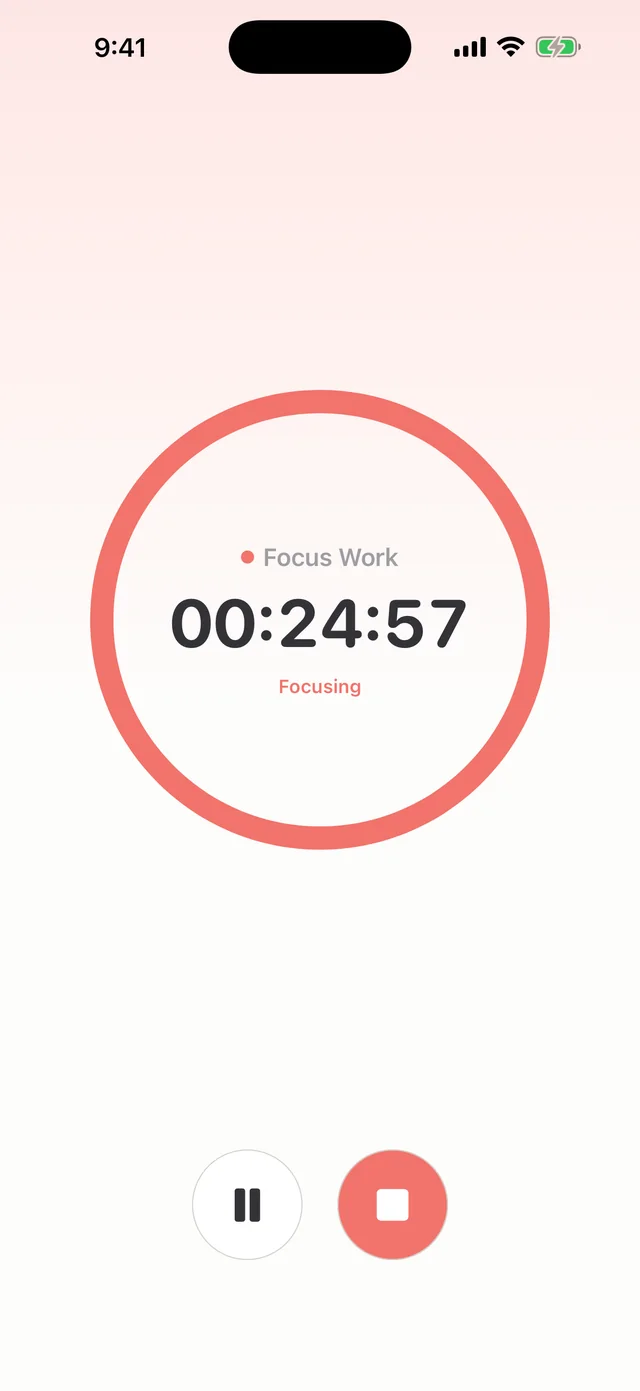
Hue Plan is a time-blocking planner where you paint your day with pastel color blocks, and its Focus Mode, part of Premium, lets you start a timer straight from a scheduled block. Pick an event on your day timeline and start the timer. The remaining time appears on the Dynamic Island and in a Lock Screen Live Activity, and a notification tells you when it ends. You stay inside the plan instead of bouncing to a separate timer app.
To be clear, Hue Plan is not a dedicated Pomodoro app. It does not loop 25/5 cycles automatically or count sessions. The timer runs per scheduled block. If you like the Pomodoro rhythm, lay out 25-minute focus blocks and 5-minute break blocks in the planner and start the timer on each one.
When a block ends, you can mark it complete and record the time you actually spent. The actual span shows as a dotted overlay on the grid, and the Plan vs Actual card in Review shows your follow-through rate and the gap by category. Hue Plan is free to start, and Premium, which includes Focus Mode, is a one-time purchase ($2.99), not a subscription. It works on iPhone, iPad, Apple Watch, and Mac with no account sign-in.
FAQ
Should I combine my study timer and my planner in one app? +
Is Pomodoro or 90-minute deep work better? +
What do I need to see a timer on the Dynamic Island? +
Can I do Pomodoro with Hue Plan Focus Mode? +
 Free to start · Premium one-time purchase