 Hue Plan 휴플랜
How to Make a Weekly Timetable in an App
If your days feel planned but your weeks still end with things slipping, the problem may be the size of the planning unit. A weekly timetable lays study, exercise, and rest on top of the fixed skeleton of classes or work, so you can see the balance of the whole week. This guide walks through building a college class schedule, a work week plan, and an exam study timetable in an app, step by step, plus the mistakes that make most timetables fall apart by Wednesday.
Why build your weekly timetable in an app
There are four common ways to make a weekly timetable: drawing one in a paper planner, building a grid in Excel or Google Sheets, screenshotting the class schedule from your school portal, or using a weekly timetable app. The first three are easy to set up but fragile when things change. A canceled lecture or a meeting pushed to Thursday leaves eraser marks on paper, forces you to re-merge cells in a spreadsheet, and simply cannot be fixed in a screenshot.
In an app, you drag the block to its new slot and you are done. Repeating events are entered once and fill the whole semester automatically. You can swipe back to last week and compare it with this one, and alerts can ring before a class or study session starts. Most importantly, your phone is always in your hand, so you end up looking at your schedule far more often than at a sheet taped above your desk.
Not every app handles weeks well, though. When choosing a weekly schedule planner app, check three things: whether the whole week fits on one screen, whether you can repeat events on chosen weekdays, and whether a home screen widget lets you see the week without opening the app. Without those, a timetable tends to become something you made once and never looked at again.
The right order: fixed events first, buffers last
A weekly timetable fails when you start by filling empty slots. Work through these four steps in order.
1) Fixed events first. Put in everything you cannot move. For a college student that means classes, labs, and a part-time job. For someone working full time, it is the commute and recurring meetings. For an exam student, it is cram school or tutoring and travel time. Meals and sleep belong here too. Once the skeleton is in, you will usually find you have less free time than you assumed.
2) Set up repeats. Most fixed events come back on the same weekdays. Make them weekly repeats on the right days, such as a Monday and Wednesday 10 AM lecture or a Tuesday and Thursday 7 PM workout, and set an end date for when the semester or project finishes. Time spent here means you never rebuild the timetable from scratch next week.
3) Fill the gaps. Now place studying, assignments, side projects, and exercise into the open time. Put the hardest work in the hours when you focus best. An exam student might give 9 AM to noon to the two toughest subjects and an hour after dinner to reviewing mistakes. Someone with a nine-to-five might protect the hour before work or the slot right after lunch for a personal project.
4) Leave buffers. The most common mistake is filling the week wall to wall. Keep 30 to 60 minutes free each day and roughly half a day on the weekend. When an overdue assignment or a surprise plan shows up, it lands in a buffer instead of knocking over everything else. Add a short weekly review block on Friday afternoon or Sunday evening to move unfinished items into next week, and your timetable will survive much longer.
Repeating on chosen weekdays and creating several days at once
A college class schedule like "Monday, Wednesday, Friday at 9 and Tuesday, Thursday at 1" needs weekday-specific repeats. A daily repeat spills into the weekend, and creating each day separately means editing five events every time a time changes. When you set up repeating events, make sure you can pick the weekdays, set an end date, and choose whether an edit applies only to one occurrence or to all of them.
In Hue Plan, open the repeat option on an event, choose weekly, tick the days you need, and set an end date. If the time changes later, apply the edit to all repeats in one go. When you do not need a repeat but want the same time slot on several days this week, long-press in the week view and drag across to the neighboring days. Dragging from Monday at 7 AM across to Friday creates five weekday morning workouts at once.
When only a week or two changes, such as during exams, leave the repeating series alone and move or delete just that week's events. Editing the original series makes it harder to restore the normal schedule once exams are over.
Timeline or compact grid: which week view to use
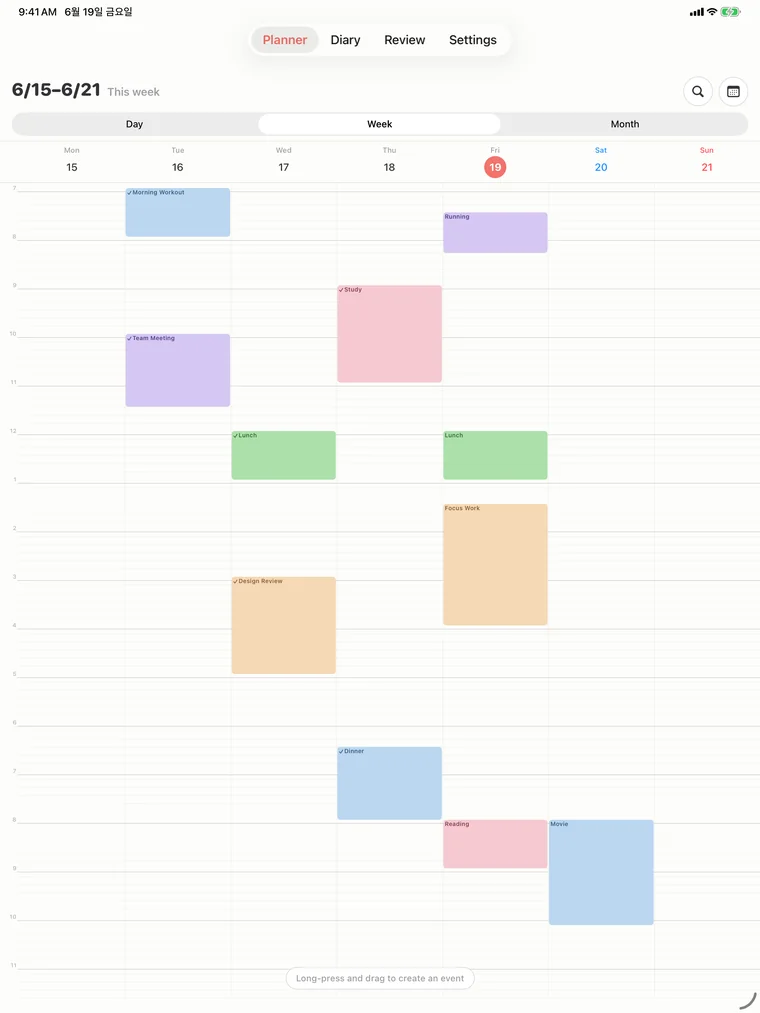
There are two main ways to display a weekly timetable. A vertical timeline puts the days side by side with time flowing from top to bottom, just like a school timetable. Block height matches duration, so you get an instant sense that Tuesday afternoon is packed. The downside on an iPhone is that a full day does not fit on screen, so you scroll up and down.
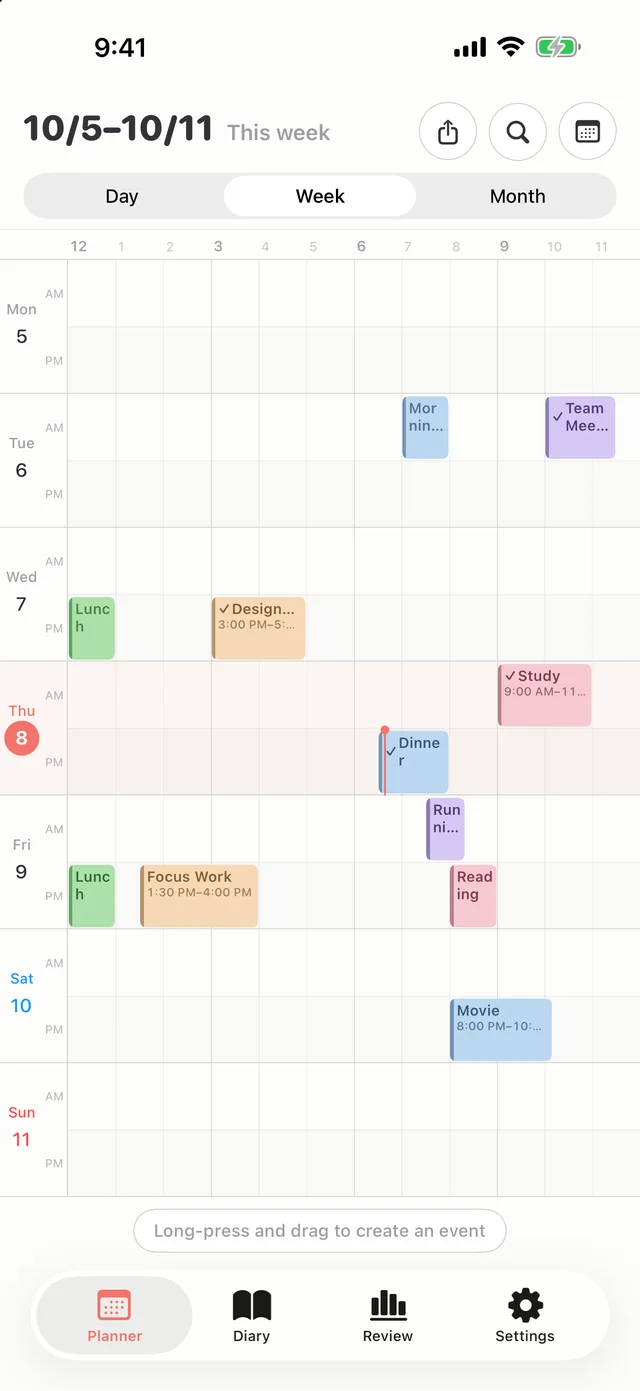
A compact grid lays the time axis on its side. Hue Plan's compact week grid gives each day two rows: the top row is the morning twelve hours and the bottom row is the afternoon and evening twelve. Because twelve hours fit exactly across the screen width, the whole week shows on one screen with no sideways scrolling, and swiping left or right moves to the previous or next week.
The rule of thumb is simple. If your week is full of hour-sized blocks like classes and meetings and you check exact times often, the timeline suits you. If you want to scan how dense the week is and where the free time sits, all on one iPhone screen, the compact grid is easier. Hue Plan lets you switch the week view direction in settings, so try both and keep the one that feels right.
See it big on iPad, keep it on your home screen with widgets
The iPad is the best screen for building a weekly timetable. The week timeline spreads out comfortably, event names are not cut off, and dragging or resizing blocks is precise with a single finger. A good split is to plan next week on the iPad on Sunday evening and check it on the iPhone during the week. Turn on iCloud sync to keep both devices on the same schedule.
A timetable only works if you actually see it. One that lives inside an app is easy to forget. Put a weekly timetable widget on your iPhone home screen and the shape of your week shows up every time you unlock your phone. Long-press an empty spot on the home screen, tap Edit, choose Add Widget, and search for the app. On the lock screen, a next event widget shows your upcoming class or meeting the moment you wake the phone.
Building your timetable with Hue Plan's week view
Hue Plan is a time-blocking planner that paints your time in pastel blocks. Give each category its own color, such as blue for classes, orange for your part-time job, and green for exercise, and the weekly timetable becomes readable by color alone. Besides the 11 pastel colors, you can pick any custom color.
Version 1.2.0 added a compact grid to the week view, with morning and afternoon rows that fit an entire week on one iPhone screen. Version 1.2.1 greatly expanded home screen widgets: the This Week timetable widget comes in sizes from small to extra large, alongside a compact this-week widget. Widgets follow your first-day-of-week setting and dark mode.
When your weekly grid is ready, export it as an image to share or to paste into a note app such as GoodNotes. There is no login, and your data stays on your device and in your own iCloud. The day view is free, while the week and month views, widgets, and iCloud sync are part of Premium, a one-time purchase of $2.99 rather than a subscription.
FAQ
What happens to my class schedule when the semester ends? +
Can I save or share my weekly timetable as an image? +
Is the week view in Hue Plan free? +
How do I see the same weekly timetable on iPhone and iPad? +
 Free to start · Premium one-time purchase