 Hue Plan 휴플랜
Using a GoodNotes Planner Template With a Time-Blocking App
A GoodNotes planner template is great for handwriting and decorating, but every rescheduled meeting means erasing and rewriting. This guide shows how to keep the pen-and-paper feel of your digital planner while handing the time grid to a time-blocking app, with step-by-step instructions for connecting the two.
What GoodNotes planner templates do well, and where they fall short
A GoodNotes planner template is a PDF you write on with Apple Pencil. Hyperlinked yearly, monthly, weekly, and daily pages, sticker packs, washi tape, and custom fonts make it more flexible than a paper planner, and many people find that writing by hand helps them think. At the end of the year you also have a complete notebook to look back on.
The trouble starts when you deal with time. A template is a static PDF, so a gym session every Tuesday at 7 a.m. means writing the same words 52 times a year. When a meeting slips by 30 minutes, you erase it and redraw the box. Nothing reminds you before a block starts, and if you want to know how many hours you studied this month, you have to count them yourself.
In short, a digital planner template is strong at capturing, decorating, and reflecting, and weak at anything that needs calculation: recurring events, edits, reminders, and stats. You do not have to give up either one. Move only the weak parts into a time-blocking app and both tools get better.
Split the roles: time blocks in the app, handwriting and reflection in GoodNotes
The setup that lasts is the one with clear boundaries. A simple rule works well: anything that changes or repeats goes in the app, and anything you want to keep or think through goes in GoodNotes.
Let the app handle: 1) recurring schedules like your college class schedule, work shifts, or workouts, 2) work blocks that keep moving around, 3) reminders for things you cannot afford to start late, and 4) a summary of where your hours actually went this week.
Let GoodNotes handle: 1) a handwritten page for this week's goals and priorities, 2) mood notes, gratitude lists, and reading notes, 3) decorating with stickers, photos, and washi tape, and 4) a weekend reflection page.
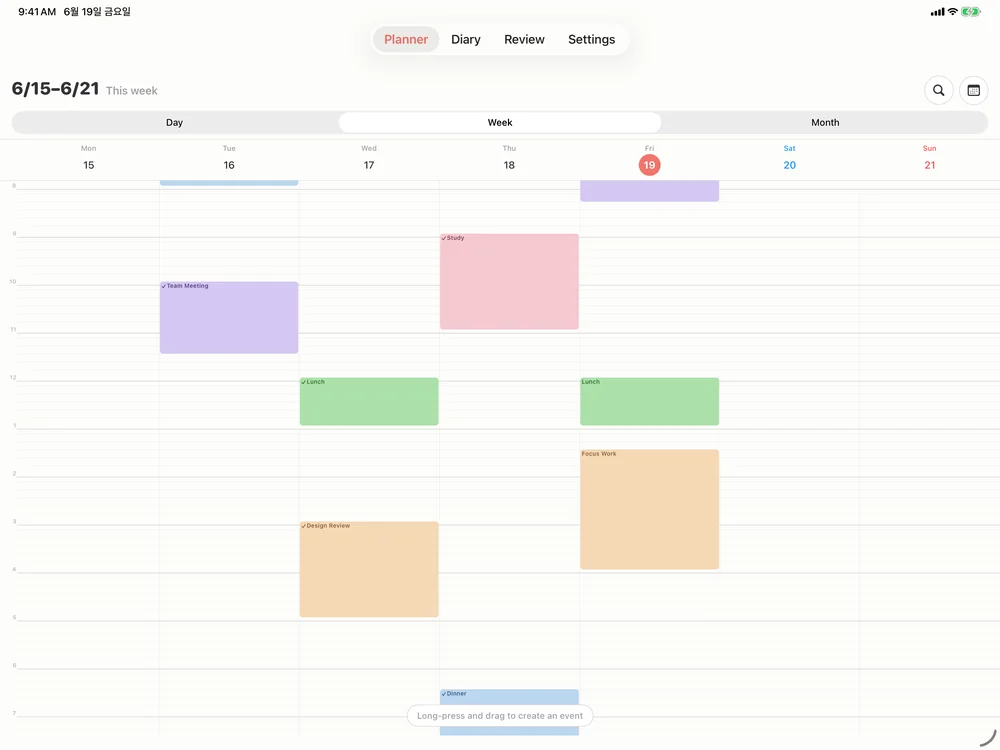
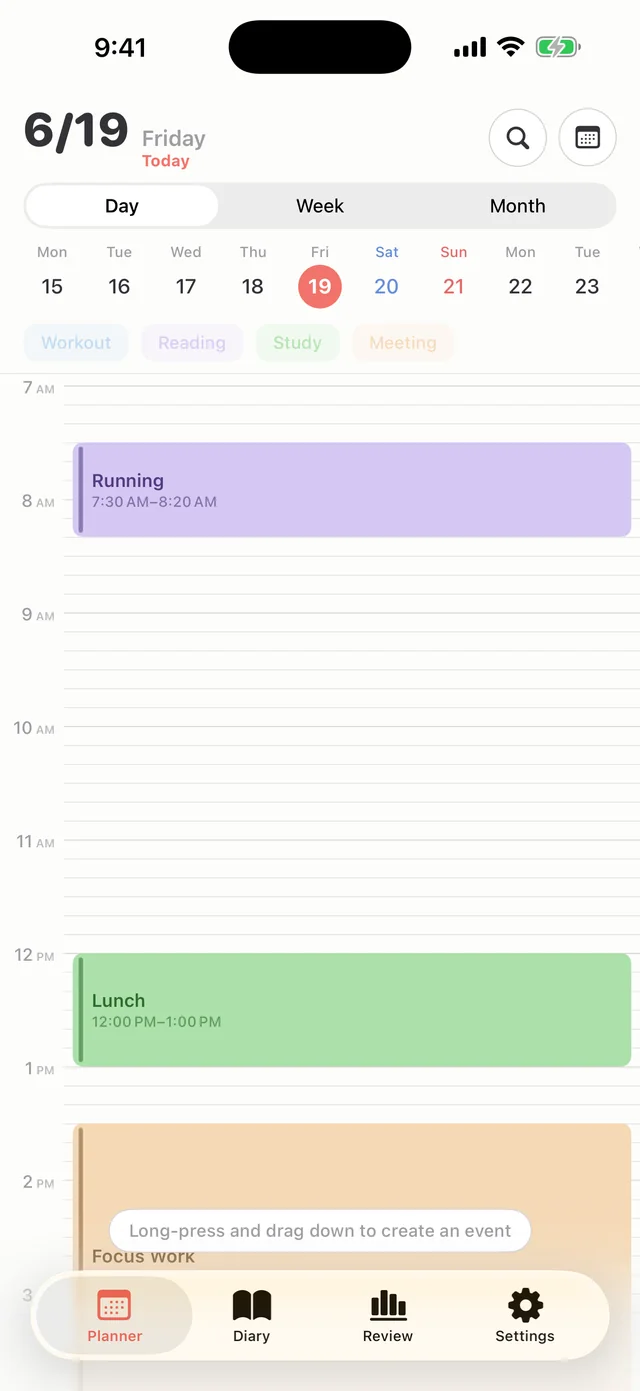
With this split you no longer have to fill in the hour lines on your template. Paste the schedule image exported from the app onto your weekly spread and keep the rest of the page for handwriting. When plans change, you drag a block in the app instead of scrubbing your page with the eraser.
Export your planner as an image and paste it into GoodNotes
The easiest bridge between the two apps is exporting your planner as an image. Here is how it works in Hue Plan.
1) Open the day view or week view for the dates you want. A daily grid suits a daily page, and a weekly grid suits a weekly spread. 2) Choose image export and turn on the transparent background option so the color and texture of your template show through. 3) When the share sheet appears, pick GoodNotes or save the image to Photos. 4) In GoodNotes, open the weekly page, insert the image with the image tool, and resize it to fit the empty area of your template.
A few tips help. Transparent backgrounds look cleanest on light templates, while dark templates are usually more readable with the background left on. Paste the weekly grid once, right after you finish planning on Monday morning. Re-pasting it every day makes the page heavy and erases the baseline you need for comparing plan and reality on the weekend. Writing checkmarks or notes over the image with your pencil keeps the paper-planner feel.
Use iPad Split View to run both apps side by side
If you use a digital planner app on iPad, Split View is the most comfortable setup. You can see your schedule on one side and GoodNotes on the other without moving any images around.
1) With GoodNotes open, tap the three-dot button at the top center of the screen and choose Split View. 2) Pick Hue Plan from the Home Screen or the Dock, and the two apps open next to each other. 3) Drag the divider to adjust the ratio. Give Hue Plan more room while you plan, and give GoodNotes more room while you write and decorate.
In landscape, Hue Plan's week view shows the whole week of blocks at once, so you can write this week's goals on your GoodNotes weekly spread while placing the matching blocks next to it. You read your handwritten goals, schedule time for them in the app, then glance at the schedule and jot more notes by hand. On a smaller iPad, Slide Over works well for pulling Hue Plan in briefly and hiding it again.
A weekly workflow: plan on Monday, execute daily, reflect on the weekend
With two tools, deciding when to open which one is what makes the habit stick. Here is a sample week.
Weekly planning (Sunday night or Monday morning, 20 minutes): write three goals for the week by hand on your GoodNotes weekly page. Then open Hue Plan's week view and place time blocks for each goal. A college student might add the class schedule as weekly repeats, then fit four study blocks and three workout blocks into the open slots. When you are done, export the weekly grid as an image and paste it into GoodNotes.
Daily execution (5 minutes a day): during the day you do not need GoodNotes at all. When a Hue Plan reminder goes off, follow the block. If something slips, drag it to a new time in the app. In the evening, add a one-line journal entry or a gratitude note to your GoodNotes daily page.
Weekend reflection (Saturday or Sunday, 15 minutes): compare the plan image you pasted on Monday with what actually happened in Hue Plan. Note which blocks kept slipping and which days were overloaded on your GoodNotes reflection page, then carry just one change into next week. A common mistake is decorating the reflection page so heavily that it becomes a chore. A fixed three-question template keeps it light enough to do every week.
Hue Plan's image export and photo diary
Hue Plan is a time-blocking planner that colors your day with pastel blocks. Two features pair especially well with GoodNotes. First, you can export your daily or weekly grid as an image with a transparent background and send it through the share sheet to note apps like GoodNotes. Second, the diary lets you keep a note next to each day's schedule and attach up to three photos per day.
The photo diary works as a rough draft before you write in GoodNotes. Snap your lunch, your study desk, or a walk, attach them to that day, and on the weekend the photos make it easy to remember the week while you reflect. With iCloud sync turned on, the diary and photos show up on both iPhone and iPad, so what you log on your phone during the day is ready on your iPad at night.
Hue Plan is free to start with no sign-in. Premium, which adds week and month views, iCloud sync, widgets, and more, is a one-time purchase of $2.99, not a subscription. It runs on iPhone, iPad, Apple Watch, and Mac, and your data stays on your devices and your own iCloud.
FAQ
Can I time block with a GoodNotes template alone? +
Can I edit the exported image in GoodNotes? +
Does this work with note apps other than GoodNotes? +
Do Hue Plan and GoodNotes sync automatically? +
 Free to start · Premium one-time purchase