 Hue Plan 휴플랜
Check and Complete Events with Siri, Automate Your Planner with iPhone Shortcuts
The question you ask most often when your hands are busy is "what was I supposed to do next?". This guide shows how to ask Siri for your next event, complete the current one by voice and add a new one, using Hue Plan as the example. It also covers completing events from a widget without opening the app, automation ideas for the Shortcuts app, and what to check when Siri doesn't recognise the app.
What changes when you can talk to your planner
The weakness of any planner app is that you have to open it to see it. While cooking, driving or carrying things, opening the app and scrolling to today is enough friction that you skip the check and drift off plan. Asking Siri gives you the next block's start time and title without looking at a screen, and lets you mark a finished block done right there.
Since version 1.2.2, Hue Plan offers three actions to Siri and the Shortcuts app: tell me my next event, complete the current event, and add an event. All three work on the free plan and on devices without Apple Intelligence. Your data stays on the device and in your iCloud, so what you say to Siri never reaches our servers.
What you can say to Siri (Hue Plan)
Open the app once after installing and Siri will understand the phrases below. You can call the app "Hue Plan".
Next event: "Next event in Hue Plan", "What's next in Hue Plan", "Tell me my next event in Hue Plan". Siri answers like "Your next event is 'Team meeting' at 3 PM". If something is in progress right now it says "You're in 'Write report' until 4 PM", and if nothing is left today it tells you so.
Complete current event: "Complete current event in Hue Plan", "Mark my current event done in Hue Plan". The event that covers the current time is marked done. If nothing is in progress, nothing is changed and Siri says so.
Add an event: "Add an event to Hue Plan", "Add event in Hue Plan". Siri asks for the title and the start time; if you don't give a length it creates a 60 minute block. It goes into your first category, so change the colour in the app with one tap if needed.
Combining the actions in the Shortcuts app
Open Shortcuts, create a new shortcut and search for "Hue Plan" in the actions list to find the three actions. "Next event" returns its result as text, so you can feed it into other actions. Put "Speak Text" after it and a single button reads your next event aloud without Siri; put it into "Send Message" to share your next event with family.
Automation ideas: 1) When you stop the morning alarm, speak the next event to start the day with the first block in mind. 2) When CarPlay connects, read out the next event. 3) When you leave your home Wi-Fi (commute), show the next event as a notification. 4) When a Focus mode turns off, run "Complete current event" so the block you just focused on is marked done automatically. Build these in the Automation tab of Shortcuts by picking the trigger and running the shortcut you made.
Completing from a widget without opening the app
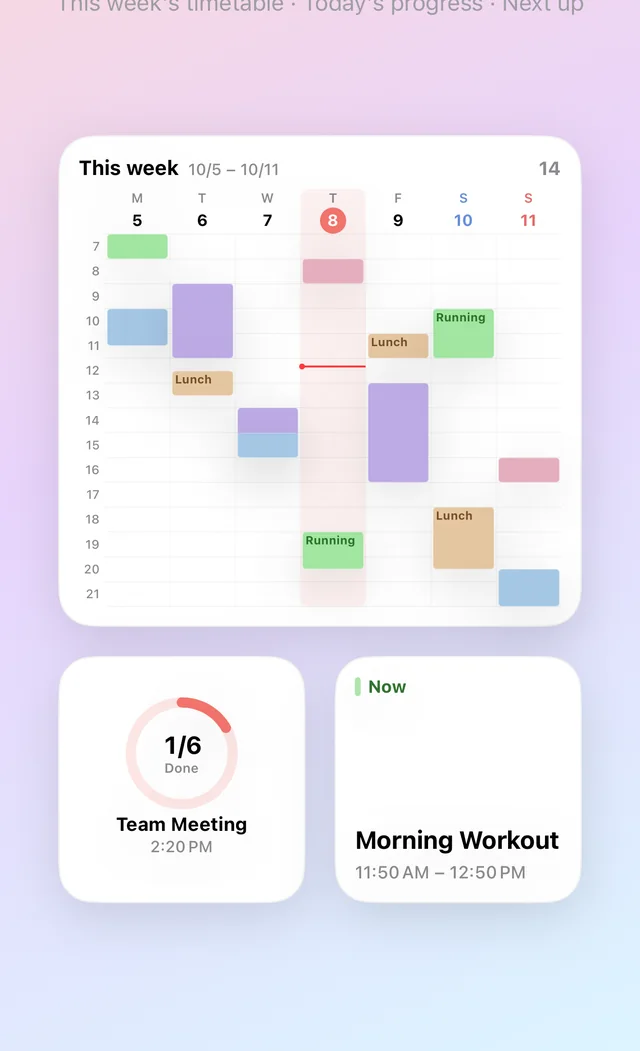
Where talking is awkward, a Home Screen widget is faster. Hue Plan's Today widget (medium, large, extra large), Next up widget (small, medium) and Today's progress widget (medium) show a small circle next to each event. Tap the circle and it turns into a check right there and the event is marked done. The app shows the same event as completed and your completion rate in Review updates.
Good to know: the widget only completes planned events. Events already done or cancelled have no circle. If the app is on screen while you tap the widget, the change appears the next time the app becomes active. If you want to log the time you actually spent, complete the event in the app instead. Widgets are a Premium feature; Siri and Shortcuts work on the free plan.
When Siri doesn't understand or can't find the app
Never opened the app: right after installing or updating, Siri may not have registered the app's phrases yet. Open the app once, close it and try again.
App name missing: include the app name, as in "Next event in Hue Plan". Without it, "what's next" may be answered from the Calendar app instead.
Siri settings: check that Listen for "Siri" or the side button is enabled under Settings > Siri, and that Learn from this App and Show App in Search are on under Settings > Apps > Hue Plan > Siri & Search.
Actions missing in Shortcuts: fully quit and reopen the Shortcuts app, or restart the device, so the action list is read again. If they are still missing, make sure Hue Plan is version 1.2.2 or later in the App Store.
A day in Hue Plan, by voice and by hand
Hue Plan is a time-blocking planner where you paint your day in pastel colour blocks. In the morning, lay out blocks by long-pressing and dragging in the app, and fill the usual ones with favourite-event chips in the quick add sheet. During the day, ask Siri "Next event in Hue Plan" and finish blocks with the widget circle or "Complete current event in Hue Plan". In the evening, check your completion rate and plan vs. actual in Review.
Used this way, you open the app less and check your plan more. A planner works when you look at it often, so lowering the cost of a check with voice and widgets is the easiest way to keep using it.
FAQ
Can Siri edit or delete events too? +
Are the Siri features Premium? +
Does it work with Korean or Japanese Siri? +
I completed an event from the widget but the app doesn't show it. +
 Free to start · Premium one-time purchase