 Hue Plan 휴플랜
How to Choose a Time Blocking App: 7-Point Checklist
Searching for the best time blocking app for iPhone usually turns up ranked lists, but the app that works for someone else may not stick for you. This guide skips the rankings and focuses on how to choose a planner app yourself: how dedicated apps differ from calendars, the seven criteria worth comparing, what to prioritize for your situation, a one-week test plan, and what switching apps actually involves.
Calendar apps vs dedicated time blocking apps
You can time block in Google Calendar or Apple Calendar, and plenty of people start exactly that way, adding events like "Deep work 9:00 to 11:00." Calendar apps are excellent at appointments: meeting invites, shared schedules, email and video call integrations. They are built for coordinating with other people.
The friction shows up once you try to block out your entire day. A calendar view is designed for a handful of appointments, so when you stack ten or more 30-minute blocks, titles get truncated and the shape of your day becomes hard to read at a glance. Creating each block through a form with a title, time, and alert also gets tedious when you do it every single morning.
Dedicated time blocking apps flip the priority. They are built around painting your own day: drag on empty space to create a block, use color to separate types of work, and review whether you followed the plan. In exchange, features like meeting invites and team sharing are often limited or missing.
So the rule of thumb is simple. If most of your day is meetings with other people, a calendar should stay your base. If your goal is to design the hours you spend on your own, a dedicated app is usually more comfortable. Many people use both: meetings live in the calendar, personal work blocks live in the planner.
Time blocking app comparison: 7 criteria that matter
1) Input speed and dragging. For an app you open daily, the number of taps per block is everything. Try dragging on empty time to create a block, then dragging it to move it and stretching it to resize. If adding a single block takes more than ten seconds, you will probably stop using it within a week.
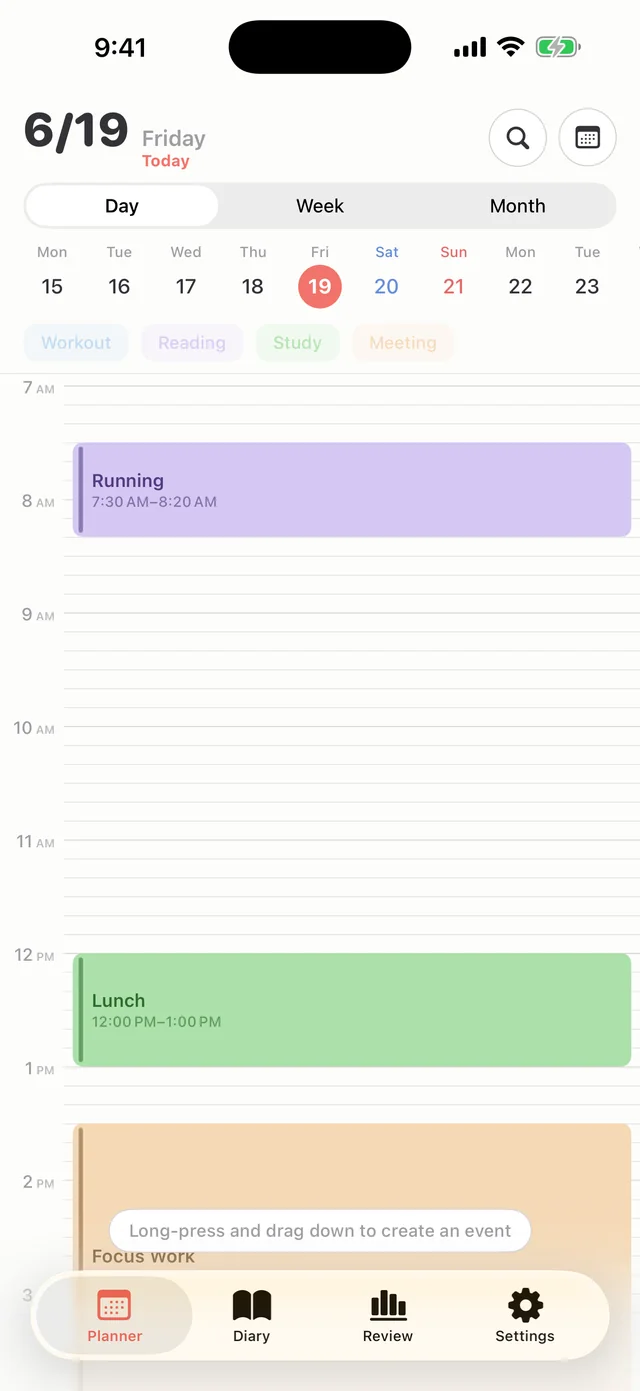
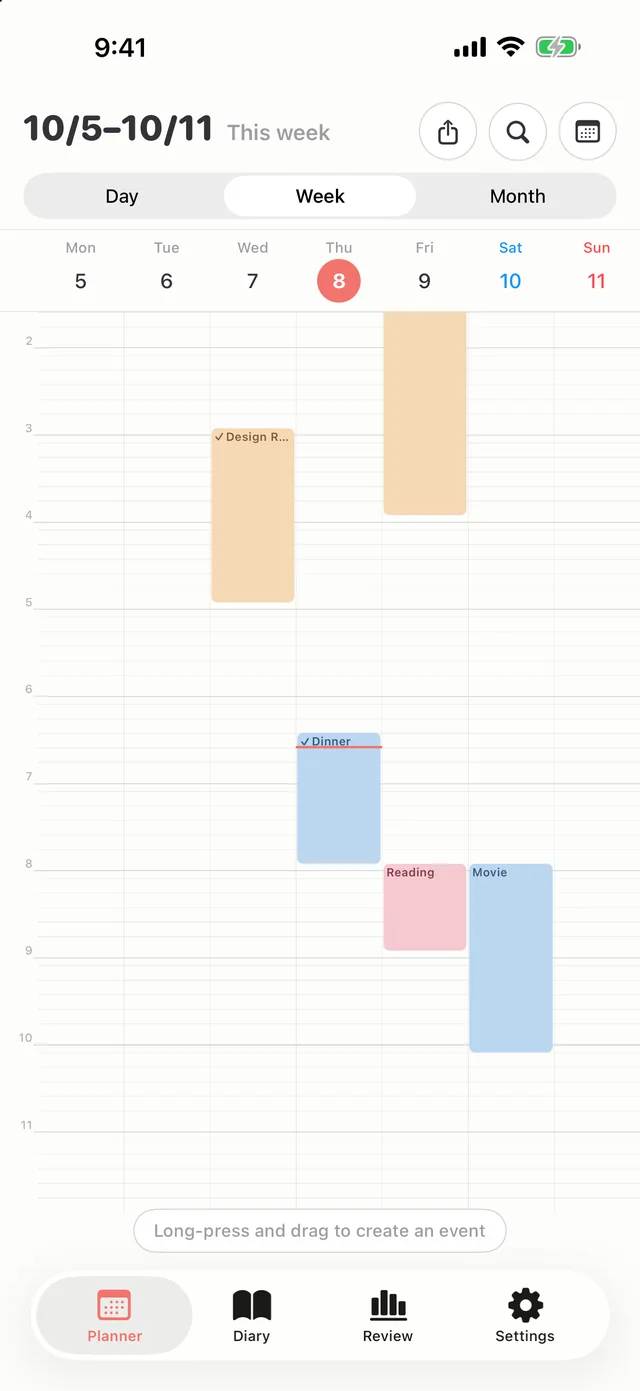
2) Day, week, and month views. You plan blocks in the day view, but balance shows up in the week view. Check that seven days of blocks stay readable without truncated text, and that switching between day, week, and month is fast.
3) Repeats and templates. Classes, commutes, and workouts often fill half of a typical week. Look for repeats with weekday selection, the ability to save frequent blocks as templates, or a way to copy yesterday's plan. These decide whether the app still feels light after a month.
4) Widgets and watch support. A plan only helps when you see it again. If your home screen, lock screen, or wrist tells you what you should be doing right now without opening the app, sticking to the plan gets much easier.
5) Stats and review. A simple look back at completion rate, time per category, and planned versus actual time makes next week's plan more realistic. You do not need a full analytics dashboard.
6) Sync and privacy. Your daily schedule is personal data. Check whether the app requires an account, and whether your data sits on the developer's servers or only on your devices and your own cloud. If you use both an iPhone and an iPad, check how sync works too.
7) Pricing model. There are three common models. Monthly or yearly subscriptions fund ongoing updates but cost money for as long as you use the app. A one-time purchase costs more up front in some cases but nothing after. Free with ads is the easiest start, as long as you can live with the ad frequency. Estimate the total cost over one year and three years and the choice usually becomes obvious.
What to prioritize for students, professionals, and freelancers
You do not have to weigh all seven criteria equally. Pick the two or three that match your daily life.
College students should look at repeats and the week view first. Enter your college class schedule once as weekly repeats, then fill the gaps with study blocks. Since schedules change every semester, check that repeating events can have an end date.
Office workers usually have meetings in a work calendar already. Rather than copying every meeting, it is more realistic to block only deep work and your after-work hours in a dedicated app. Widgets or a watch that show your next block matter more than advanced features.
Freelancers and solo business owners should prioritize stats and review. Give each client its own color, and seeing how many hours went to each one per week makes quotes and deadlines more accurate.
If you get distracted easily or struggle to start tasks, including people who feel they have ADHD tendencies, many users find a simple screen with clear color coding less overwhelming than a feature-packed app. That is a note about user experience, not medical advice. The most reliable way to find out what helps you is to try it for a week.
Start free and decide: a one-week test checklist
Most planner apps let you start for free. Use them for one week in this order before paying, and you will know with reasonable confidence whether an app will stick.
Day 1: Block out all of tomorrow and time yourself. If it takes under five minutes, input speed passes.
Day 2: Add your weekly recurring blocks such as classes, workouts, or commute. See whether choosing weekdays and setting an end date feels natural.
Days 3 and 4: When the plan slips, drag blocks to new times. If editing is painful, you will avoid opening the app on the days you fall behind, which are exactly the days you need it.
Day 5: Turn on widgets or alerts and check whether you can see your next block without opening the app.
Days 6 and 7: Review the week in the week view. If you can tell where your time went and what to change next week, the app works as a review tool too.
If you opened the app on fewer than four of the seven days, the issue is probably fit, not features. Move on and run the same test with another app. If you are curious about paid features, it is not too late to pay after an app passes this checklist on its free tier.
Switching apps: how moving your data really works
To be honest, there is rarely a standard way to move schedules automatically from one time blocking app to another. Even when an app can export data, the next app often cannot read that format, so most people end up moving things by hand.
Instead of trying to move everything, work in order. 1) Move recurring blocks first. Re-creating classes, work hours, and workouts fills your new app's week quickly. 2) Move one-off events for the next two weeks. 3) Leave past history behind, and take screenshots of the old app if you want a record.
Keep the old app installed for about a month. It serves as a reference until the new one feels natural, and it leaves you the option to go back. When choosing your next app, check whether it offers backup export, so the next switch is less painful.
Who Hue Plan is for, and who it is not for
Hue Plan is a time blocking planner where you paint your day with pastel color blocks. Measured against the seven criteria: long-press and drag on empty time to create a block, then drag to move or resize it. Pinch with two fingers to switch between day, week, and month views. It supports repeats (daily, chosen weekdays, monthly, with end dates), duplicating, copying yesterday's plan, and saved frequent blocks as templates. There are home and lock screen widgets, an Apple Watch app, and a review screen with completion rate and planned versus actual time.
There is no login and no server. Your data stays on your devices and, if you turn it on, your own iCloud. You can start for free, and Premium is a one-time purchase of $2.99, not a subscription. Premium unlocks the week and month views, review, widgets and Apple Watch, iCloud sync, automatic backup, focus mode, and unlimited templates, and removes ads. The free version centers on the day view and may occasionally show a full-screen ad when you open the app. There is no free trial period, so the best approach is to run the one-week test above on the free version and decide from there.
On the other hand, another app will suit you better if you need Android or a web version, automatic sync with Google Calendar or Apple Calendar, shared schedules or team editing, or if your main goal is managing a to-do checklist. Hue Plan does not offer those. It is a good fit if you want to design your own day with color on iPhone, iPad, Apple Watch, and Mac.
FAQ
Is a free time blocking app good enough? +
Can I just time block in Google Calendar? +
Is a subscription or a one-time purchase better? +
Can I automatically move my planner data to a new iPhone app? +
 Free to start · Premium one-time purchase